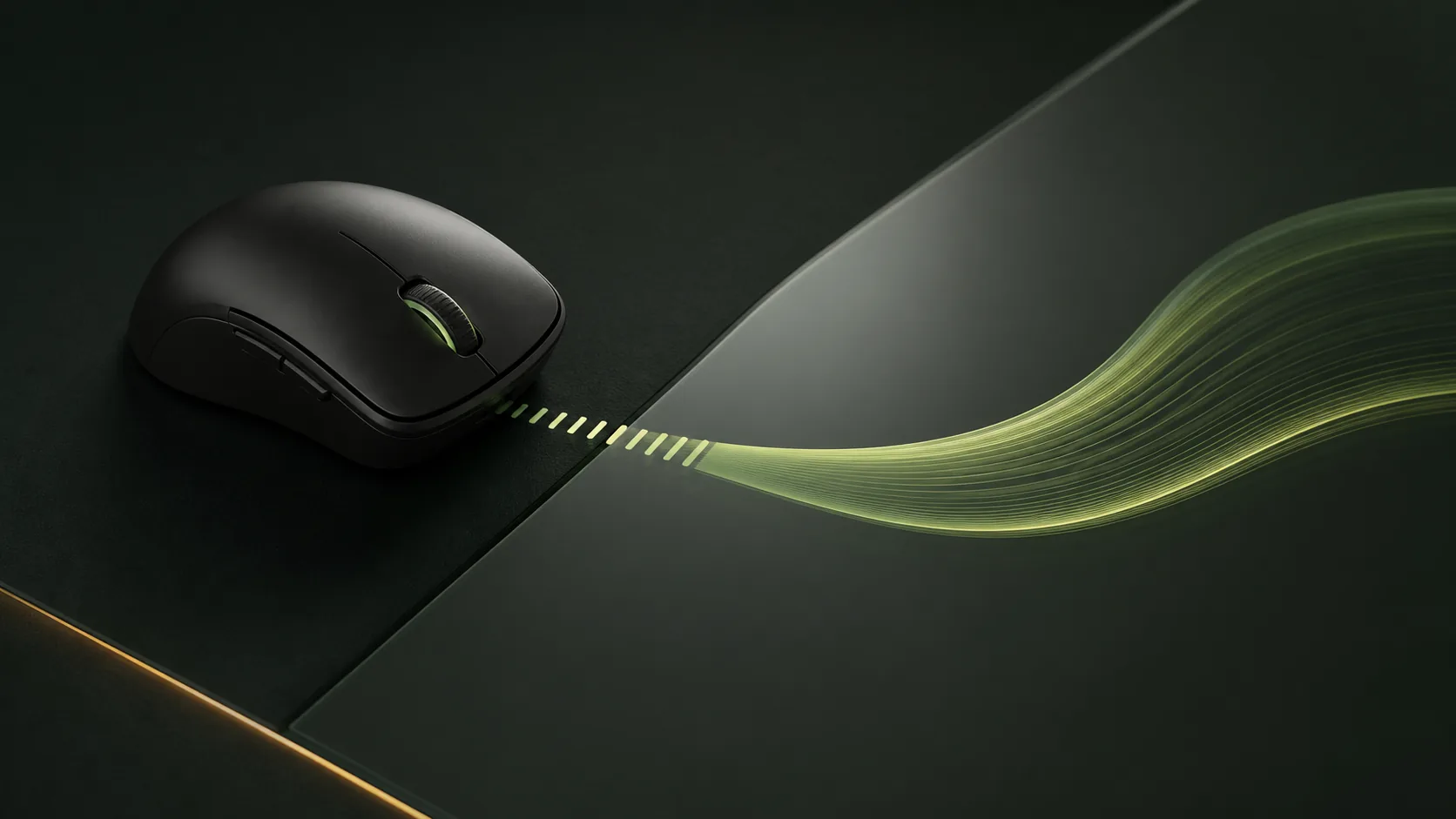
Trackpads describe a gesture. Mouse wheels report a series of turns.
When you move two fingers on a Mac trackpad, scrolling follows the distance and speed of that gesture. The movement is continuous, and momentum can carry the page after your fingers lift.
A conventional wheel is different. It usually reports individual notches. Without a smoothing layer, the page reacts to those steps instead of following a continuous path. That makes text appear to jump, particularly on high-refresh displays where the contrast with trackpad motion is easy to see.
Four adjustments shape almost the entire scrolling experience.
Distance per step
This controls how far the page travels for one wheel notch. Too little feels tiring on long pages; too much makes the content leap. Set this before tuning anything else.
Smoothness
Smoothness controls how quickly motion settles. A shorter response feels direct and precise. A longer response feels softer and closer to trackpad momentum, but too much can feel delayed.
Acceleration
Acceleration lets repeated wheel turns cover more distance. Use a gentle curve so one notch remains precise while a quick series can travel through a long document.
Direction
Many people prefer natural scrolling on a trackpad but traditional wheel direction on a mouse. A per-mouse direction control avoids changing both devices together.
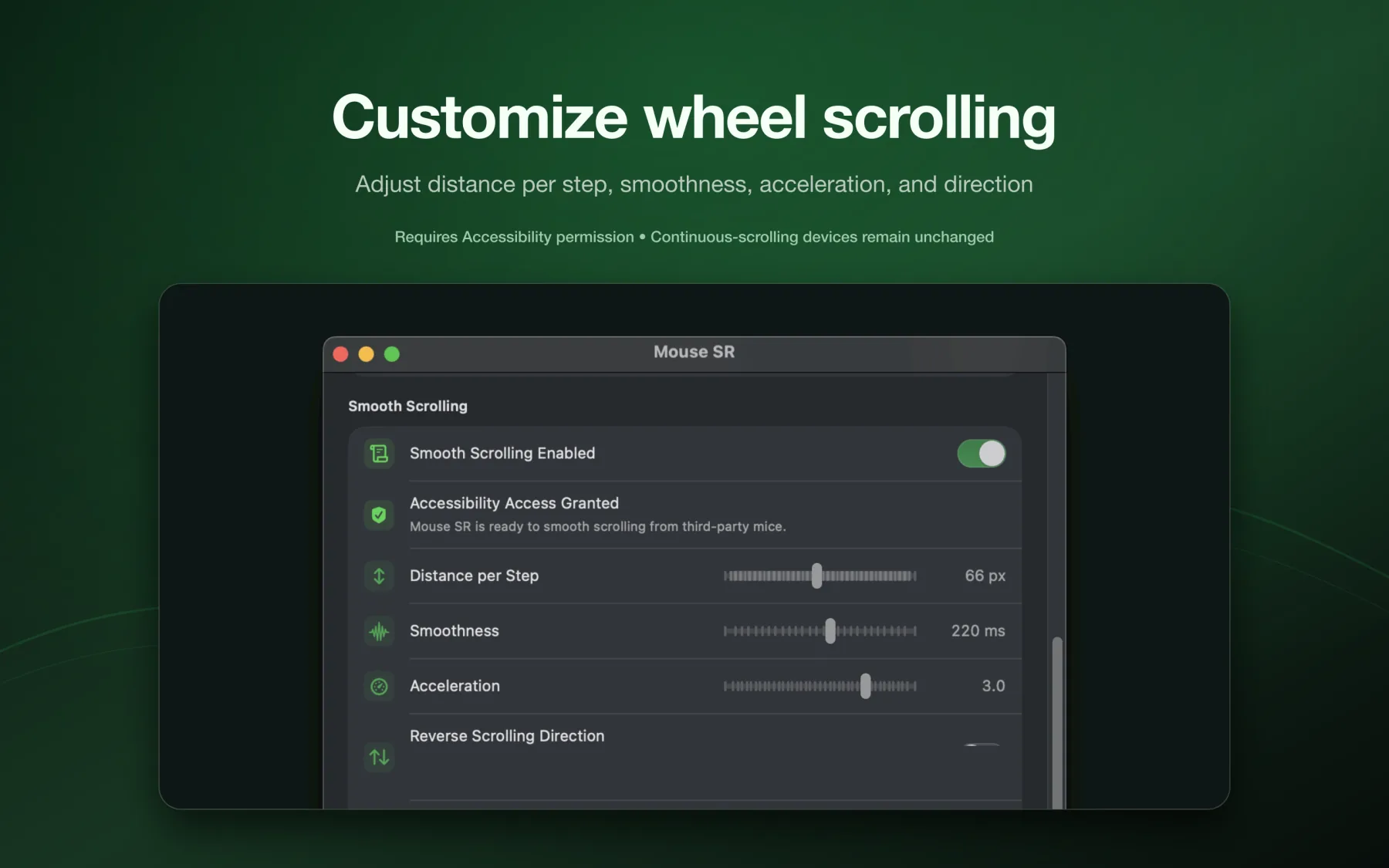
Build a trackpad-like feel without making the wheel floaty.
- Begin with the defaults. Scroll a familiar webpage with both the trackpad and mouse before changing anything.
- Set distance first. Aim for a useful but controlled amount of page movement from a single notch.
- Increase smoothness gradually. Stop when separate wheel turns visually blend without adding an obvious delay.
- Add acceleration last. Test slow reading and fast navigation. Both should remain predictable.
- Choose direction independently. Match Windows-style wheel behavior or natural scrolling without compromising the trackpad.
Use the menu-bar switch to compare processed and unprocessed scrolling. A quick A/B comparison is more reliable than adjusting several sliders from memory.
Improve the wheel without filtering devices that are already smooth.
A system-wide effect should not make the Mac trackpad worse in order to make a mouse better. Mouse SR identifies discrete wheel input and passes through trackpads, Magic Mouse, tablets, and existing continuous-scroll events.
That means you can switch naturally between the built-in trackpad and an external mouse. The trackpad keeps its native gesture behavior, while the mouse wheel gets its own distance, smoothness, acceleration, and direction.
Quick answers
Frequently asked questions
Can a regular mouse scroll like a Mac trackpad?
A wheel cannot reproduce finger gestures exactly, but software can translate each wheel notch into continuous, momentum-like pixel scrolling. With the distance, smoothness, and acceleration tuned well, the visual motion can feel much closer to a trackpad.
What settings make mouse scrolling feel like a trackpad?
Use a moderate distance per step, enough smoothness to blend neighboring wheel turns, and gentle acceleration for long pages. Start with defaults and adjust only one control at a time.
Does smooth scrolling remove the physical wheel clicks?
No. The wheel keeps its physical notches. Smooth scrolling changes the movement shown on screen between those inputs.
Can I keep natural scrolling on the trackpad and use another direction for the mouse?
Yes. Mouse SR can reverse the third-party mouse wheel independently while leaving continuously scrolling devices unchanged.
Keep the mouse you like.