Your wheel sends steps. Your trackpad sends motion.
A typical third-party mouse wheel has physical notches. Each notch produces a separate scroll event, so a page may move in a series of visible jumps. A Mac trackpad continuously reports finger movement instead, giving macOS many smaller updates to animate.
That difference is why the same webpage can feel fluid with two fingers and stiff with a conventional wheel. Increasing scroll speed only makes each jump travel farther. It does not necessarily fill the space between jumps.
First, make sure “not smooth” is really a scrolling problem.
People often use laggy, jumpy, stuttering, and choppy for several different problems. Watch what happens before installing another mouse utility.
The page moves in clear steps
Your pointer remains responsive, but the content snaps up or down with each wheel notch. This is the smooth-scrolling problem Mouse SR is designed to address.
Scrolling starts late or pauses
Try another USB port, receiver, cable, or Bluetooth connection. Delayed input can come from wireless interference, low battery, or vendor software—not from the scroll animation itself.
The pointer also skips
If ordinary pointer movement is choppy, investigate the connection, display refresh rate, mouse polling, and background software first. Smoothing wheel events will not repair pointer lag.
Only one app stutters
Test Finder, Safari, and another native app. A browser extension, rendering issue, or application-specific scroll behavior may be responsible when the problem appears in only one place.
Try the simple system and hardware checks first.
- Adjust scroll speed: open System Settings → Mouse and try a middle value. An extreme setting can make each notch feel more abrupt.
- Compare another app: scroll the same amount in Finder and Safari to see whether the issue is system-wide.
- Check vendor software: if your mouse includes its own smooth-scrolling option, test it both enabled and disabled so two tools are not processing the same wheel.
- Test the connection: recharge the mouse, move the receiver away from a noisy hub, or compare Bluetooth with a direct receiver.
- Restart the affected app: especially when the problem began after an app or browser update.
If the wheel is responsive but the content still moves one notch at a time, the remaining issue is the motion between those notches.
Turn wheel notches into continuous, display-synchronized scrolling.
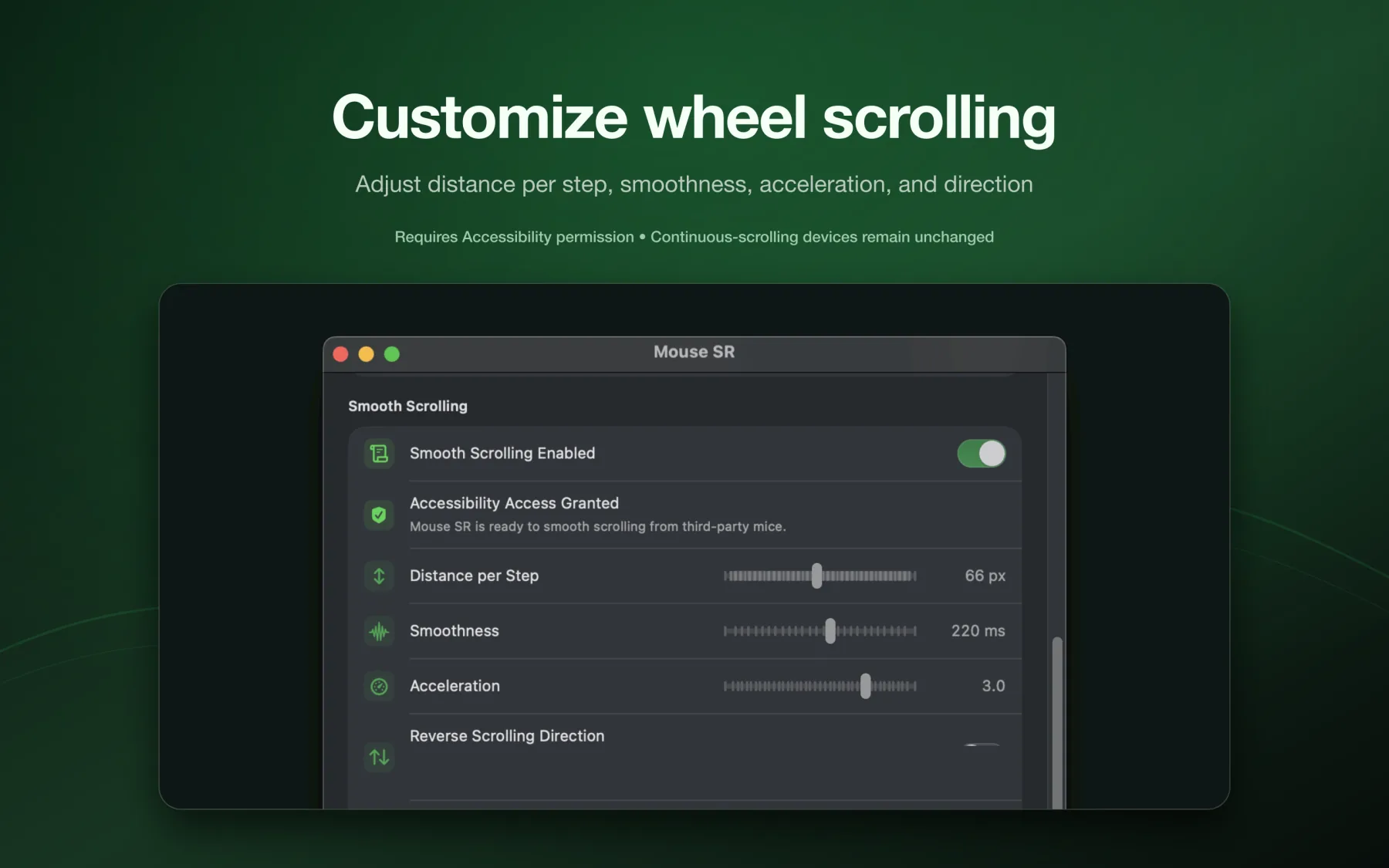
Mouse SR intercepts discrete wheel steps from a third-party mouse and rebuilds them as continuous pixel-based scroll events. A critically damped motion model combines new wheel turns with movement already in progress, while the output follows the refresh rate of the display under your pointer.
You can tune distance per step, smoothness, acceleration, and direction. Trackpads, Magic Mouse, tablets, and other devices that already scroll continuously pass through unchanged.
Quick answers
Frequently asked questions
Why is mouse scrolling not smooth on Mac?
Many conventional mouse wheels report separate wheel steps. macOS can move the page for each step, but that input does not automatically have the continuous motion you get from a trackpad or Magic Mouse. The result can look choppy even when the mouse connection is working normally.
Is choppy scrolling the same as Bluetooth mouse lag?
No. Choppy scrolling describes pages moving in visible steps. Bluetooth lag usually affects pointer movement, clicks, or the delay before scrolling begins. Test the pointer and wheel separately before choosing a fix.
Can macOS Mouse settings enable smooth scrolling?
The built-in settings can change scroll speed and direction, but they do not provide a full smoothness control for every third-party wheel. A scroll utility can turn discrete wheel steps into continuous pixel-based motion.
Will Mouse SR change trackpad or Magic Mouse scrolling?
No. Mouse SR passes through trackpads, Magic Mouse, tablets, and other devices that already send continuous scrolling input.
Keep the mouse you like.