Garage footage guide
How to Review Garage Security Footage for Motion
A garage camera may record long periods where almost nothing changes. A focused motion scan can narrow saved footage to the moments when the main door, side entrance, parking area, or another selected part of the frame changes.
Download MoFind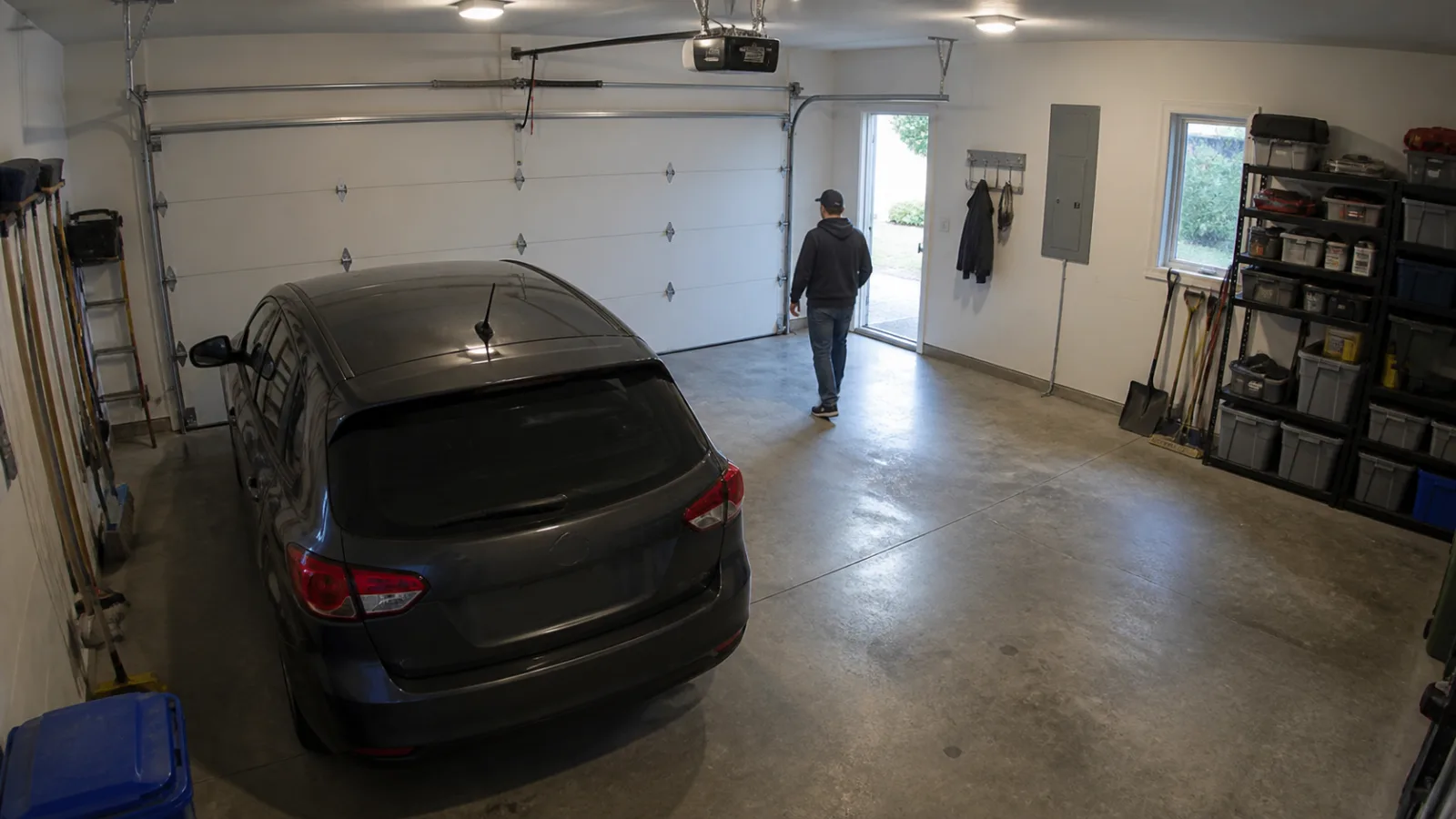
Why garage footage needs a focused review plan
Garage recordings often contain long quiet sections, followed by large picture changes when a door opens, a light switches on, or someone crosses the frame. Watching the complete recording is slow, while scanning the entire picture can include changes that do not answer the current question.
Start with one useful zone and one time period: changes near the side entrance overnight, movement around the main door during a known interval, or activity in a selected storage area.
Long quiet recordings
A garage camera may record for hours between useful moments. Restricting the scan to a relevant time window reduces unnecessary processing and review.
Large door and lighting changes
Opening the main door or switching on a ceiling light can change much of the frame at once. Region placement and sensitivity influence how these changes appear in the event list.
Several zones in one camera view
The main door, side entrance, parking area, shelves, and windows may all appear together. A detection region helps isolate the zone connected to the current review.
Select the garage area you need to inspect
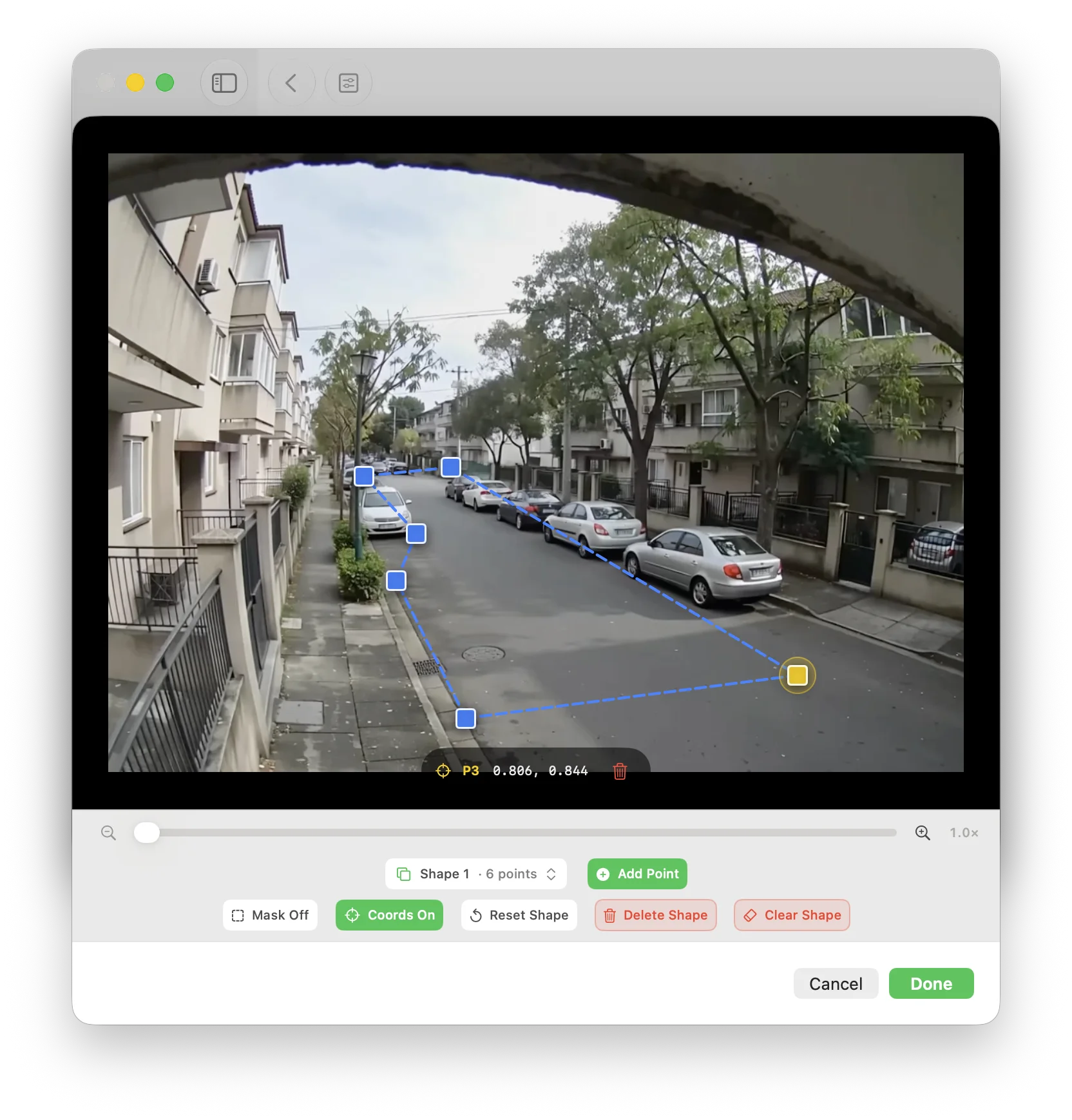
Place the detection region around a specific doorway, the garage-door threshold, a parking area, or another clearly defined part of the garage. When practical, leave bright windows, automatic lights, reflective surfaces, timestamp overlays, and unrelated storage areas outside the region.
For one review question, a single precise region is usually easier to interpret than most of the garage. The free tier supports one region; Pro supports multiple regions when separate areas must be included in the same scan.
A practical garage footage workflow
MoFind analyzes saved video files; it does not connect to a live garage camera. Prepare the relevant recordings on the iPhone, iPad, or Mac that will perform the scan.
Collect the relevant saved files
Start with recordings from the camera and date that match the review task. General support includes MP4, M4V, and MOV using H.264 or H.265 when the device can decode them; macOS can use compatibility processing for more common formats.
Choose the useful time period
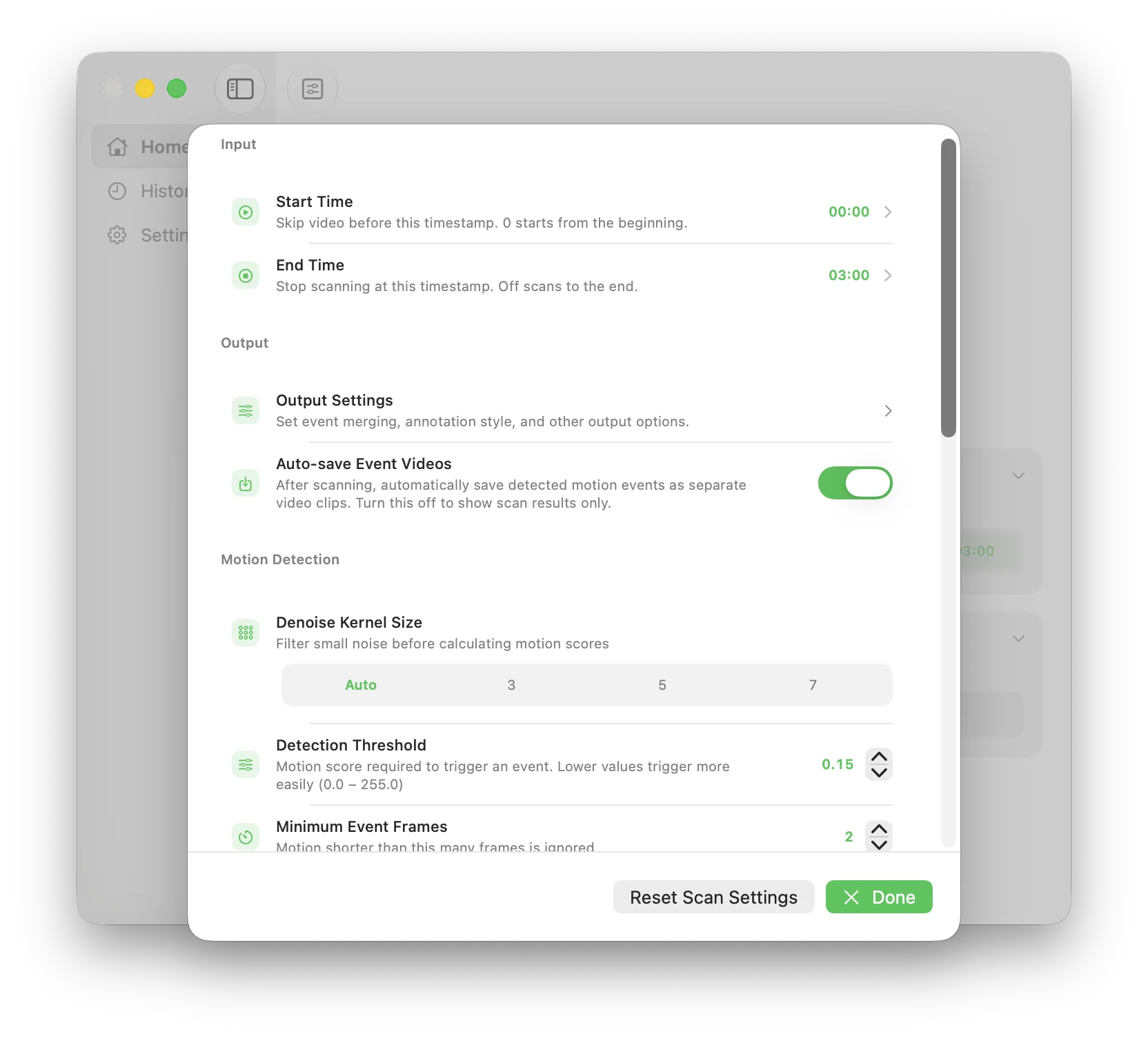
Scan only the hours that matter—for example, overnight or around a known arrival or departure time—instead of processing the complete recording by default.
Focus on one garage zone
Draw the detection region around the main door, side entrance, parking area, storage shelves, or other part of the frame connected to your review question.
Set sensitivity and start the scan
Use a preset first. If reflections or lighting changes produce too many events, or smaller picture changes are missed, refine the region and sensitivity before scanning again.
Review the event list
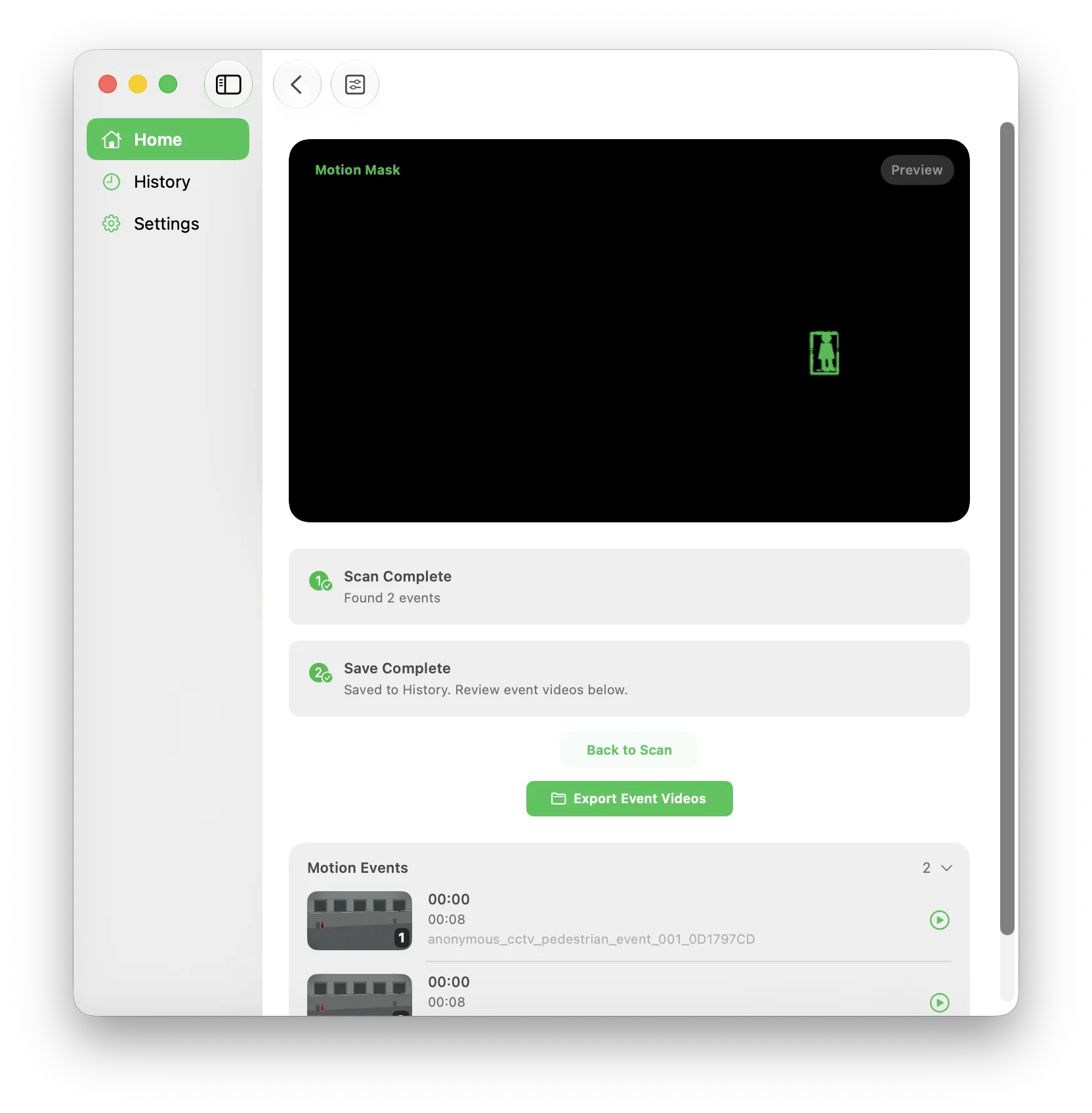
Compare timestamps, durations, motion scores, and thumbnails. Preview useful events before deciding whether to save or export them; event-clip export requires Pro.
Turn the event list into a manageable review
Treat each event as a point where the selected part of the picture changed. Use its time, thumbnail, and preview to decide whether it is relevant to the question you are reviewing.
Review around known times
If you already know an approximate arrival, departure, or door-opening time, compare nearby events in chronological order before expanding the review window.
Use thumbnails as a first pass
Thumbnails help separate obvious light or door changes from events that deserve a closer preview without assigning an identity or meaning to the motion.
Separate unrelated garage zones
If you need to inspect both a side entrance and a distant storage area, separate focused scans can be easier to review than one broad region containing unrelated changes.
What garage motion scanning can—and cannot—show
MoFind performs motion analysis on the selected device, so saved garage videos are not uploaded for scanning. This is useful for footage that should remain local.
A detected event only means that the picture changed inside the selected region. It is not proof of a break-in, vehicle arrival, property damage, suspicious behavior, or the identity of anyone or anything in the frame.
Scans saved footage locally, focuses on selected regions and time ranges, and creates a reviewable list of picture-change events with timestamps and thumbnails.
It does not provide live monitoring, remote camera access, person or vehicle identification, plate recognition, break-in detection, or automatic behavior classification.
Garage footage questions
Can MoFind scan overnight garage footage for motion?
Yes. Import supported saved video files and select the time range and region you need. The free tier supports one video up to 30 minutes; Pro unlocks longer videos and a multi-video queue.
Can I scan only a garage door or side entrance?
Yes. Draw a detection region around the main door, side entrance, parking area, storage zone, or another part of the frame you want to analyze.
Can MoFind identify a vehicle or read a license plate?
No. MoFind detects picture changes in saved video. It does not identify vehicles, read plates, or determine why a vehicle appears in the frame.
Does MoFind detect a break-in?
No. A motion event only marks a picture change in the selected region. MoFind does not classify the event as a break-in or another type of incident.
Are garage recordings uploaded?
No. Motion analysis runs locally on the selected iPhone, iPad, or Mac.