Image2JXL · macOS
Batch JXL Converter for Mac
Convert folders of supported images to JPEG XL, or export JXL batches to JPG or PNG. Import files, review each result, and save outputs locally on your Mac.
Why use Image2JXL for this workflow?
Pause, resume and retry
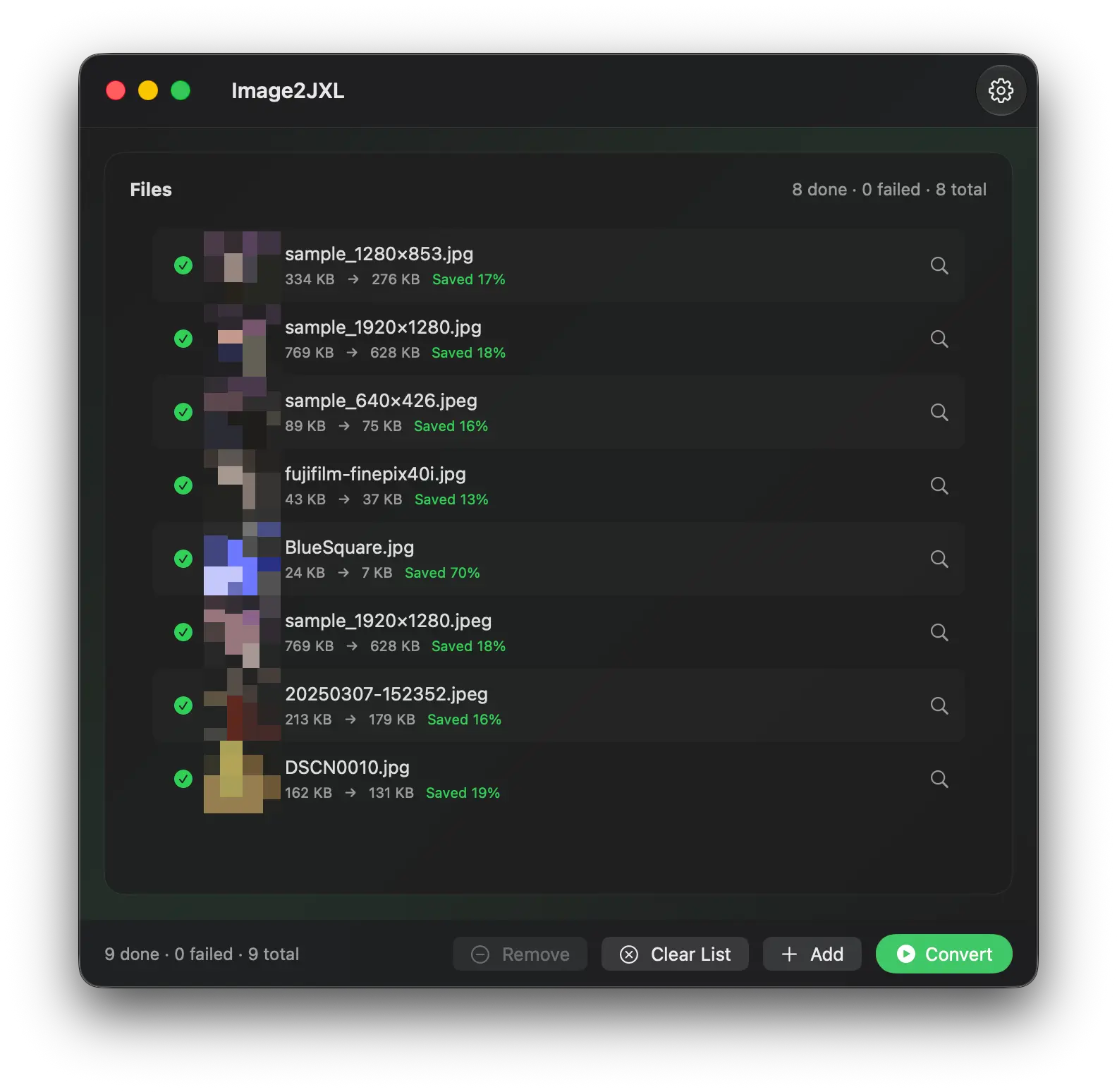
Import files or folders, follow import progress and review each conversion result. Pause the queue after the current conversion finishes, resume when ready, and retry failed files.
Keep conversion local
Image2JXL performs JPEG XL conversion on your Mac. Source files are not uploaded to a cloud converter.
Review every file
Check each file's status and inspect the output before removing originals. More than 10 queued files, preserving folder structure, and moving originals to Trash after success require Pro.
How to convert on Mac
On Mac, choose the conversion mode and parameters before importing. After importing, edit them in Settings → Conversion Options.
- Choose image-to-JXL conversion or a JXL export format. Use Lossless JPEG mode only for JPEG/JFIF inputs.
- Add supported image files or drag a folder into Image2JXL.
- Review the output folder and available conversion settings.
- Run the export and inspect the resulting files in the destination workflow.
Important format details
What can it convert?
Convert JPEG, PNG/APNG, GIF, TIFF, BMP, HEIC/HEIF, WebP, AVIF, EXR, PFM, PGX, NetPBM and JXL images to JPEG XL. JXL → JPEG / PNG / GIF.
Lossless JPEG mode is specific to JPEG input
Reversible JPEG recompression applies to JPEG/JFIF sources. Other supported image formats can use pixel-lossless encoding where available, but they do not gain byte-for-byte restoration of their original containers.
Keep backups for archival workflows
Test conversion and restoration with representative files before replacing or reorganizing an important photo archive.
Keep HDR
Enable Keep HDR to retain highlights and tonal detail in supported JPEG, HEIC and AVIF gain-map photos. It is off by default; unavailable HDR data falls back to SDR. Lossless JPEG transcoding preserves the original JPEG and gain map for reconstruction rather than applying HDR to the JXL pixels.
Choose your HDR output
For lossy HDR output, Prioritize Size creates smaller files but can appear darker on standard displays. Prioritize Display retains the original display curves for more consistent brightness and color, with larger files and slower conversion. Lossless HDR output retains the source profile.
Lossless or quality 100?
Turn on Lossless only for JPEG input: it preserves the data needed to restore the original JPEG. For other supported formats, turn Lossless off and choose quality 100 for pixel-lossless encoding; this does not restore the original file container. JPEG encoded at quality 100 is not a reversible JPEG repack. Default quality is 90.
Frequently asked questions
Can I convert folders?
Yes. You can import individual files or folders, drag files and folders into the app, and run batch conversions with per-file status.
Is there a Pro plan?
Basic conversion and supported EXIF/XMP metadata and ICC color-profile handling are included. Pro unlocks batches beyond 10 files and preserving folder structure. Moving originals to Trash is a Mac-only Pro option, and only runs after successful conversion without data-loss warnings.
Does it upload my files?
No. All conversions are performed locally on your Mac. Files are never uploaded for conversion.
What formats are intentionally unsupported?
TGA, PSD, RAW, SVG, PDF and ICO are not supported as inputs.