Redact private text before sharing iPhone screenshots
A screenshot can contain the information you want to share alongside details you would rather keep private: a name, phone number, email address or postal address.
FTMask helps you cover those details on iPhone and iPad. Start with automatic detection, review the results, and adjust the masks yourself.
Detection and image processing happen on your device. FTMask does not upload your selected images to developer servers. Requires iOS or iPadOS 26.0 or later.

Detect, then review
Open an image from Photos, Files or a compatible app’s share sheet. Check the detected text areas and adjust or switch off masks as needed.
Automatic detection can miss details. Zoom in before exporting, including small print, headers, signatures and anything else you do not want to publish.
Use solid covers for important information
For sensitive details such as phone numbers, email addresses and postal addresses, use an opaque solid cover. Make sure it covers the complete text.
FTMask also offers blur and pixelation, but those visual effects do not guarantee protection against inference or recovery. Always inspect the exported result.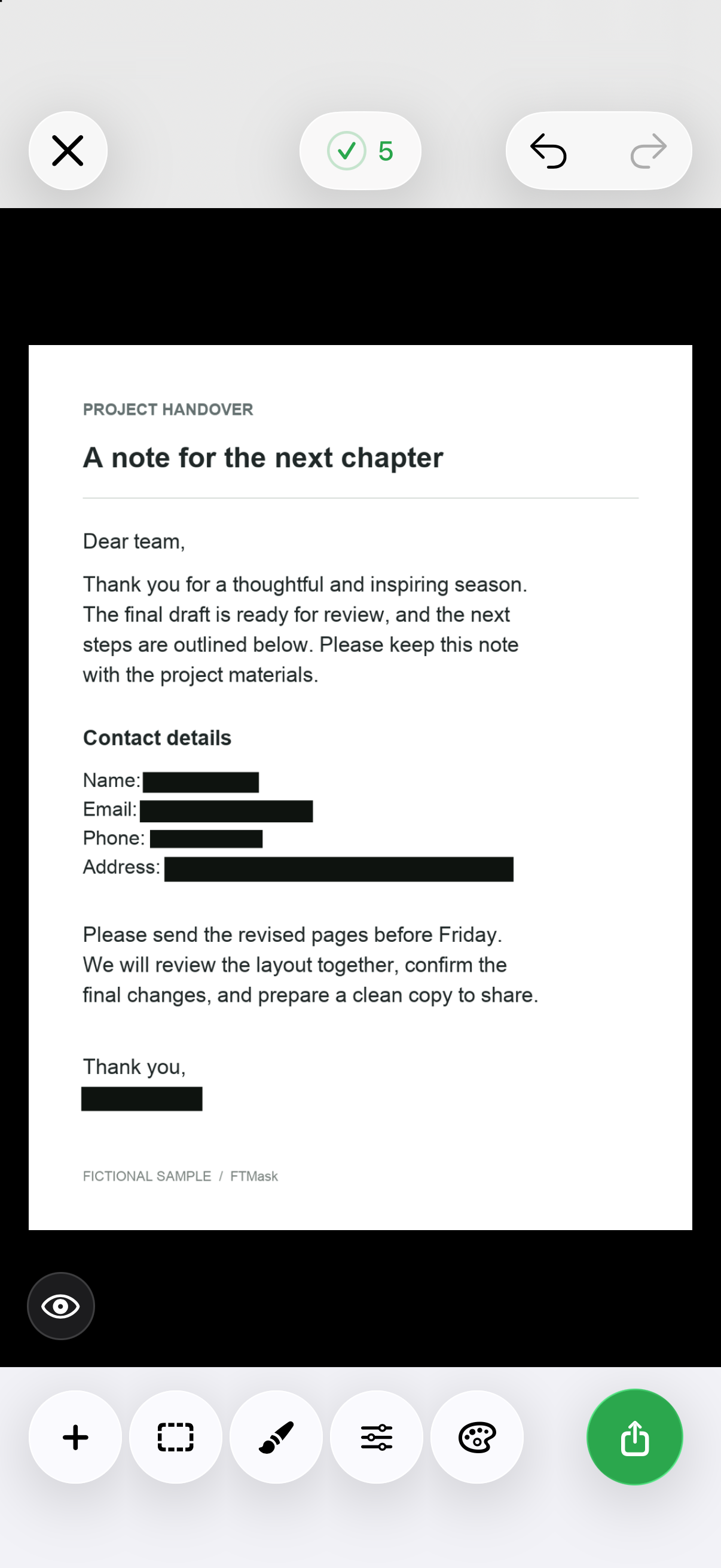
Add masks where needed
Use a rectangle or brush mask to cover anything detection missed. Move and resize areas, zoom in, and use undo or redo to refine the result.
Keep the context you want to share while covering the details you want to hide.
Export a copy and check it
Export a separate PNG or JPEG at the original pixel dimensions without replacing the source image.
Free exports include a movable FTMask watermark and retain source EXIF/GPS data, if present. Lifetime Pro removes the watermark and lets you choose whether to keep or remove that metadata in Settings.
Before sharing, open the exported image and check the covered text, any remaining details, and your metadata settings.