JPEG XL Converter for iPhone & iPad: Image2JXL for iOS
Image2JXL is now available for iPhone and iPad on the App Store. The native iOS app brings local JPEG XL conversion to your phone or tablet: convert supported photos to .jxl, or turn existing JXL files into JPG, PNG or GIF for sharing.
If you are looking for a JPEG XL converter for iPhone, a way to convert JXL to JPG on iPad, or a reversible JPEG workflow, this guide shows where to start. Image2JXL requires iOS 26 or iPadOS 26 or later. Image conversion stays on your device; your photos are not uploaded to a conversion server.
Download Image2JXL on the App Store · Explore Image2JXL
What can Image2JXL do on iPhone and iPad?
| Your task | Choose this workflow |
|---|---|
| Convert JPEG, HEIC or PNG to JXL | Image → JXL; choose quality before importing |
| Convert JXL to JPG or PNG | JXL → Image; select JPEG or PNG output |
| Repack a JPEG for later restoration | Image → JXL with Lossless enabled; JPEG input only |
| Recover the original JPEG from JXL | Restore original JPEG; the JXL must contain reconstruction data |
| Check a photo before exporting | Open its file details to review the preview, dimensions, bit depth and color profile |
The iOS input list includes JPEG, PNG, GIF, HEIC/HEIF, supported single-image 8/16-bit integer TIFF, and JXL. Do not assume the broader Mac input list also applies to iOS. RAW/DNG files are not supported inputs.
How to convert JPEG, HEIC or PNG to JPEG XL on iPhone
- Open Image2JXL and choose Image → JXL.
- Set quality and encoding effort. The default quality is 90; leave Lossless off for HEIC, PNG and other non-JPEG images.
- Choose photos, files or a folder. Review the imported queue and start conversion when ready; pause after the current image or retry a failed item when needed.
- Check the result in Files. Use Share / Save to export it to Files, share it with another app, or save to Photos when appropriate.
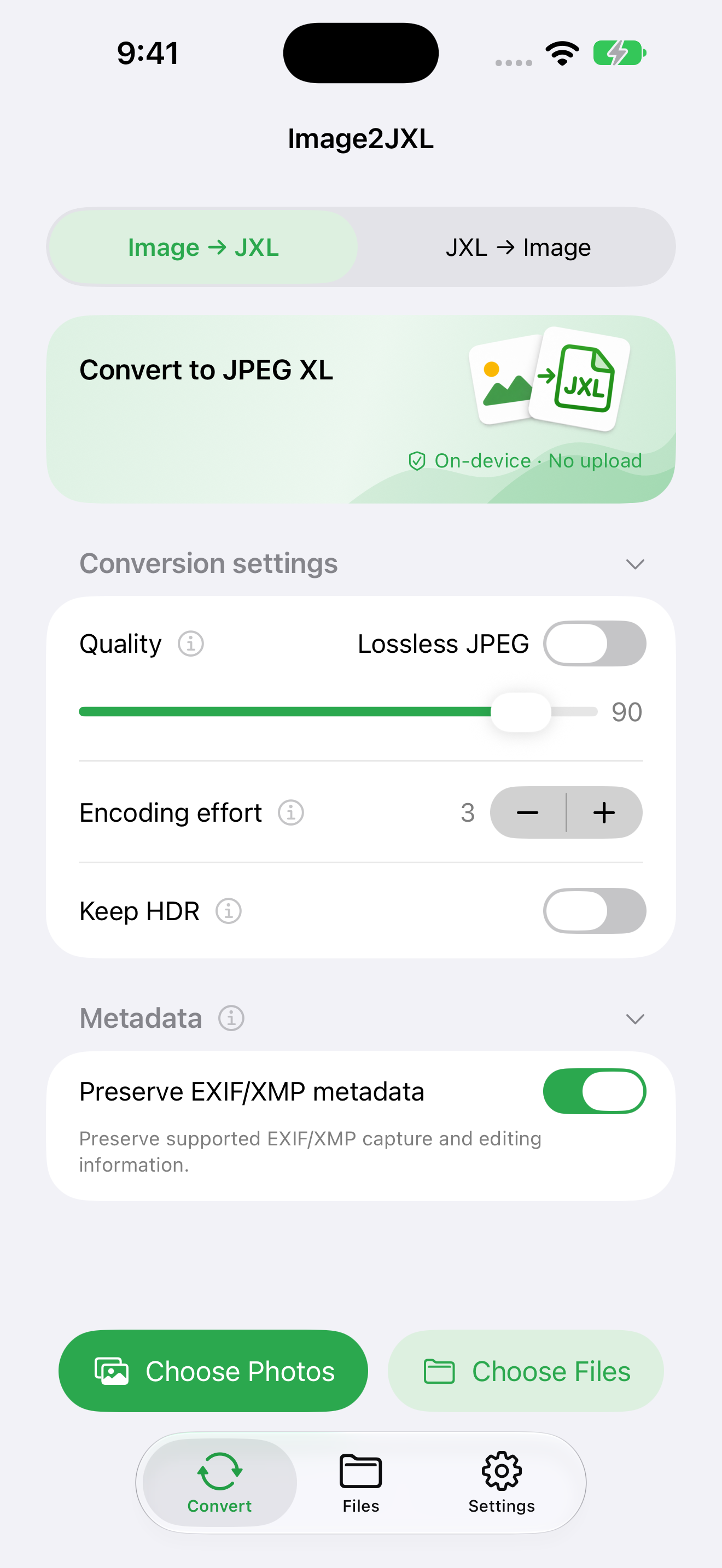
English interface shown. Set the options before importing your first batch.
Convert JXL to JPG or PNG on iPhone and iPad
Choose JXL → Image, select JPEG, PNG or GIF, then import your JXL files. Review the converted result before sharing it with an app or service that does not accept .jxl.
JPEG/JPG is useful for compatibility, but ordinary JPEG export is a new lossy encoding. Transparent areas become white, and an animation exports only its first frame. PNG retains transparency and supports output up to 16 bits; converting to PNG cannot recover detail already lost in the source. GIF uses a limited palette.
Normal JPEG export and Restore original JPEG are separate tasks. Restoration fails if the JXL lacks the required JPEG reconstruction data; it does not silently substitute a newly encoded JPEG.
Lossless JPEG versus quality 100: which should you choose?
| Setting | Meaning | Restores the source file? |
|---|---|---|
| JPEG input + Lossless | Reversible JPEG recompression | Yes, for supported JPEG sources when reconstruction data is retained |
| Other supported input + quality 100 | Pixel-lossless encoding | No; the original container is not reconstructed |
| JPEG input + quality 100, Lossless off | Pixel encoding of the decoded image | No; this is not a reversible JPEG repack |
If a PNG, HEIC or TIFF import is rejected while Lossless is enabled, turn Lossless off and use quality 100 when you want pixel-lossless output. A JXL made from one of those formats cannot be restored to an original JPEG that never existed. File size depends on the source and settings; a smaller file is not guaranteed.
A mobile file library, metadata and HDR controls
The file library keeps results available for preview and export. The detail view shows source/result sizes and image information, including EXIF/XMP where available. Supported conversion paths can preserve EXIF/XMP metadata and ICC color-profile information; that is not a promise to retain every field in every output format.
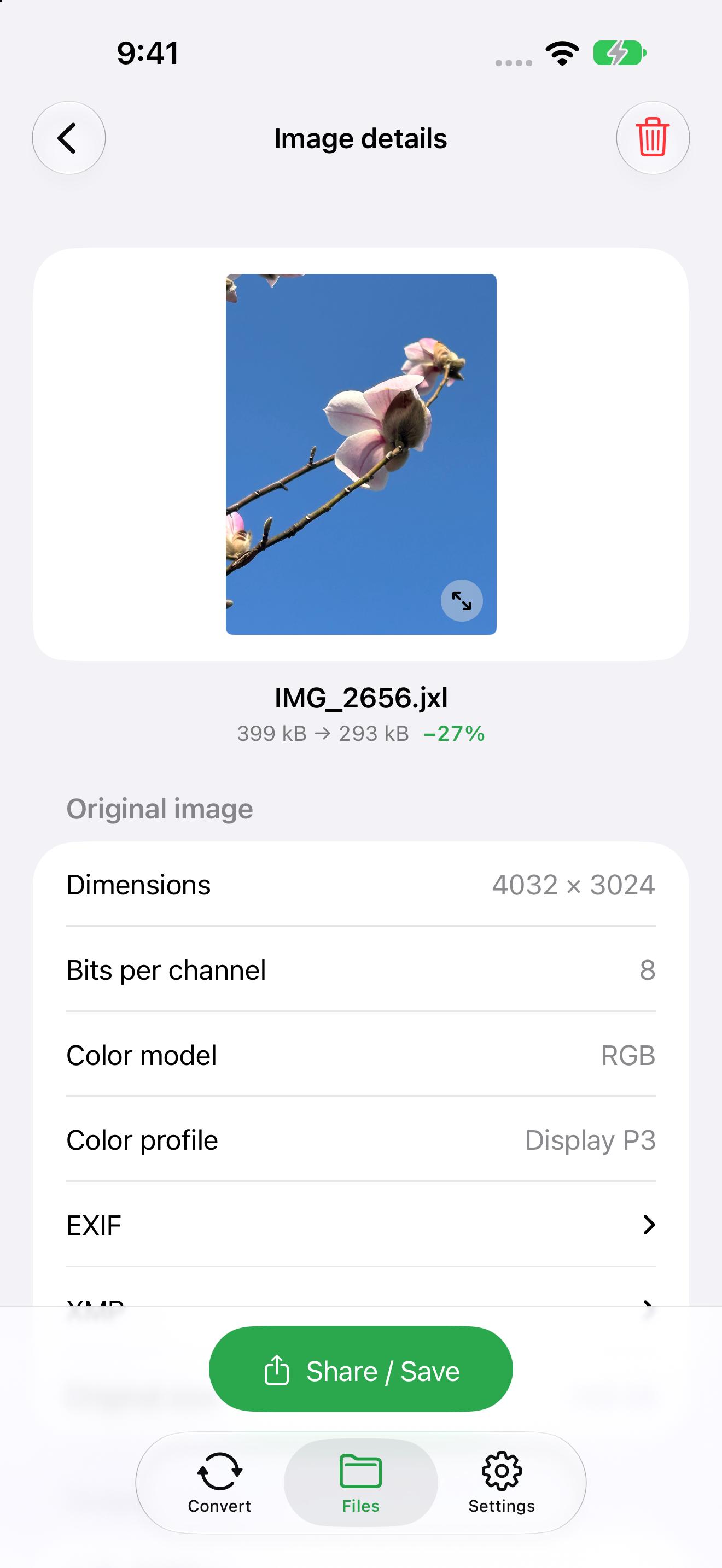
English interface shown. The displayed size saving is one example, not an expected compression ratio.
Keep HDR is off by default. Enable it for supported gain-map photos when you want HDR output. For supported lossy HDR conversions, the output preference trades smaller files against retaining source display curves. Appearance still depends on the screen and viewing app. Reversible JPEG transcoding retains the original JPEG and gain map for restoration rather than expanding HDR into JXL pixels.
Free features and Pro
Basic conversion, previews and supported metadata handling are included. Pro unlocks batches beyond 10 files and folder-structure preservation for Files export. The Mac option to move originals to Trash does not apply to iPhone or iPad. See the app for current regional purchase options.
Frequently asked questions
Can I convert JXL to JPG without uploading my photos?
Yes. Image2JXL decodes and converts locally on iPhone or iPad. You choose whether to share or save the resulting file afterwards.
Can Image2JXL convert iPhone ProRAW DNG files?
No. A camera's use of JPEG XL compression inside a DNG is different from a standalone .jxl file. RAW/DNG import is outside the app's supported formats.
Does every JXL restore to the original JPEG?
No. Only JXL files made by reversible JPEG transcoding and retaining JPEG reconstruction data can restore the original JPEG. For other JXL files, select ordinary JPG or PNG export.
Does the photo picker require full photo-library access?
No. The system picker delivers the photos you select. Saving a result to Photos requests add-only permission. Read the privacy policy for local storage and permissions.
Download Image2JXL for iPhone and iPad, try a small batch, and check the output before reorganizing important originals. For the complete feature list and platform differences, visit Image2JXL and the FAQ. The HP60 product team is responsible for this article. The publication date above identifies this content version; product behavior may change after release, so consult the linked product and support pages for current limits.Content responsibility