How to Get Smooth Scrolling on a Mac with Mouse SR
Yes, you can get smooth scrolling on a Mac without replacing a perfectly good mouse. The usual problem is not the mouse connection or the page you are reading. It is the difference between the discrete wheel steps sent by a conventional mouse and the continuous motion sent by a trackpad.
Mouse SR is a small macOS utility that turns third-party mouse-wheel steps into smoother, continuous movement. You can adjust the distance, smoothness, acceleration, and direction to match the way you read, browse, code, or work in Finder.
The short answer
- macOS has a setting for smooth mouse-wheel scrolling: Not as a dedicated control. System Settings can change scroll speed and direction, but it does not turn every notched wheel into continuous motion.
- Does a mouse need to be replaced? Usually not. If the pointer and clicks are responsive, software can improve the scrolling feel while you keep the mouse you already like.
- Does Mouse SR work with a trackpad? Yes, without changing its behavior. Mouse SR targets discrete third-party mouse-wheel input and passes through trackpads, Magic Mouse, tablets, and other continuous-scrolling devices.
- What does it cost? Mouse SR Pro includes a seven-day free trial. A one-time purchase unlocks lifetime use on up to three Macs, with no subscription or automatic renewal.
- What macOS version is required? Mouse SR works on macOS 15 or later.
Why mouse-wheel scrolling feels notchy on a Mac
A traditional mouse wheel has physical detents. Each detent produces a separate scroll event, so macOS may move a page in visible jumps. A trackpad reports much smaller changes as your fingers move, which gives the system a continuous stream of motion to display.
That is why the same page can feel fluid with two fingers and stiff with a mouse. Increasing the scroll speed only makes each jump travel farther; it does not fill in the movement between wheel steps.
This distinction also helps separate scrolling roughness from connection problems:
- If the pointer, clicks, and wheel input all arrive late, check the battery, receiver, Bluetooth connection, or vendor software.
- If the pointer is responsive but a page moves one notch at a time, the issue is probably the wheel animation.
- If only one app stutters, compare Finder, Safari, and another native app before changing system-wide settings.
What Mouse SR changes
Mouse SR sits between a discrete third-party mouse wheel and the scrolling behavior you see on screen. It translates the individual wheel turns into continuous pixel-based movement, then combines nearby turns so fast reading or long-page navigation does not feel like a sequence of hard jumps.
The result is not meant to imitate every trackpad gesture. Your wheel still has the same physical clicks and precision. The difference is that the page moves through the space between those clicks in a calmer, more intentional way.
Mouse SR processes the scrolling locally on your Mac. Mouse input is not uploaded, and the app does not need Input Monitoring permission. macOS does require Accessibility permission because the app needs to work with scroll input.
The four controls that shape the feel
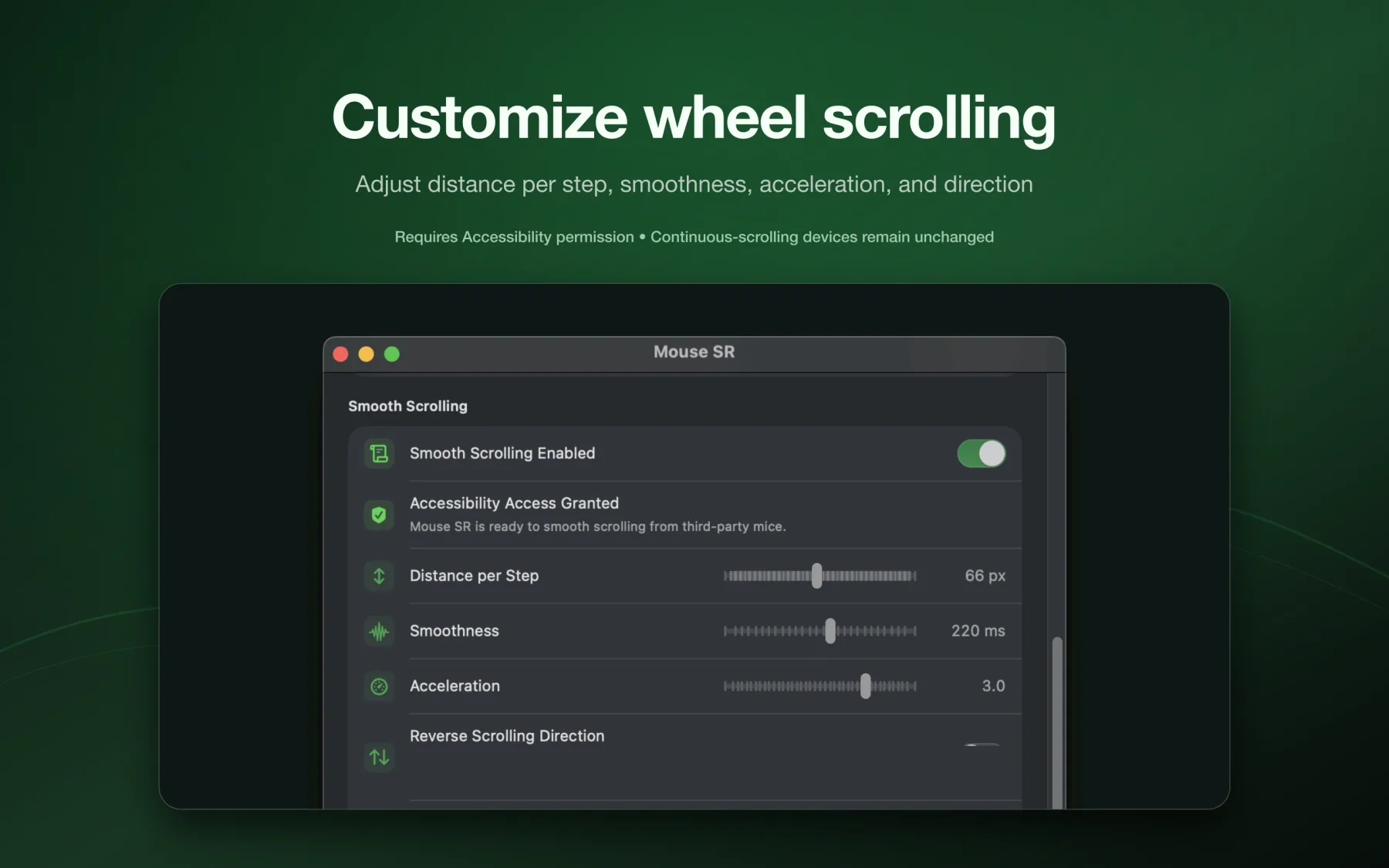
Mouse SR keeps the important controls together, so you can tune the result by feel instead of hunting through several unrelated settings.
1. Distance per step
This controls how far one wheel turn moves the page. If a single notch skips too much text, reduce the distance. If scrolling through a long document takes too many turns, increase it slightly.
Set distance first. It is easier to judge smoothness after each wheel turn already travels a comfortable amount.
2. Smoothness
Smoothness controls how quickly the movement settles. A lower setting feels direct and precise. A higher setting blends neighboring wheel turns into a softer motion that can be more comfortable for reading.
Too much smoothness can feel delayed, so increase it until the jumps blend together without making the pointer-to-page response feel detached.
3. Acceleration
Acceleration lets repeated wheel turns cover more ground. A gentle setting works well when you alternate between slow reading and quick navigation. Keep it moderate if you spend most of the day in code, tables, or dense text where predictable movement matters more than speed.
4. Direction
Many Mac users prefer natural scrolling on a trackpad but a traditional wheel direction on a mouse. Mouse SR can change the third-party mouse direction independently, so you do not have to compromise the rest of your setup.
How to set up smooth scrolling in Mouse SR
The first setup usually takes only a couple of minutes:
- Download Mouse SR and open the app from Applications.
- Find Mouse SR in the menu bar and open its settings.
- Turn on Smooth Scrolling.
- When macOS asks for permission, open System Settings → Privacy & Security → Accessibility and enable Mouse SR.
- Scroll a familiar page and adjust distance, smoothness, acceleration, and direction one at a time.
- Use the menu-bar switch to compare the processed and unprocessed wheel behavior.
Start with the defaults, then change only one control at a time. A quick comparison in Safari, Finder, and a document or code editor is more useful than trying to optimize every slider from memory.
If Mouse SR is enabled but nothing changes, check that the app has Accessibility permission and that another mouse utility is not also processing the wheel. Two smoothing layers can compete for the same input and make the result worse.
What about Mos, SmoothScroll, or mouse-vendor software?
Free utilities and vendor software can also improve mouse-wheel scrolling. They are reasonable choices when all you need is a basic smoothing switch. The important rule is to run one scrolling layer at a time.
Mouse SR is a better fit when you want the controls to be explicit and easy to tune, need a per-mouse direction change, or prefer a small utility that also includes practical Finder actions. It stays in the menu bar and leaves devices that already send continuous scrolling alone.
Optional Finder tools
Smooth scrolling is the main reason to install Mouse SR, but the optional Finder extension can remove a few repetitive file steps too. In folders you choose, the right-click menu can:
- Open the current or selected folder in Terminal
- Create an empty TXT or Markdown file
- Copy the path of a file, folder, or current Finder location
The extension appears only in the folders you allow and their subfolders. It does not need unrestricted access to the whole disk. See the Mouse SR Finder right-click tools guide if you want to set this up.
Troubleshooting checklist
If scrolling still feels rough after installation, work through these checks:
- Confirm that Smooth Scrolling is on in Mouse SR's menu-bar settings.
- Recheck Accessibility permission after a macOS update or app reinstall.
- Disable other wheel-smoothing options in Logitech, Razer, or similar vendor software while testing.
- Test more than one app. App-specific rendering or extensions can make one page feel different.
- Lower smoothness if the page feels delayed, or lower distance if each turn travels too far.
- If the pointer also lags, troubleshoot the mouse connection separately; smooth scrolling cannot repair Bluetooth or receiver latency.
For a more detailed diagnosis, read Mouse Scrolling Not Smooth on Mac? Here's How to Fix It. If you want a more trackpad-like starting point, see How to Make Your Mouse Scroll Like a Trackpad on Mac.
Frequently asked questions
Does macOS have built-in smooth scrolling for a regular mouse?
macOS has scroll speed and direction controls, but not a universal smoothness control for every third-party wheel. Mouse SR adds that missing layer for discrete mouse-wheel input.
Will Mouse SR change my trackpad or Magic Mouse?
No. Trackpads, Magic Mouse, tablets, and other devices that already send continuous scrolling input are passed through unchanged.
Is Mouse SR safe to use?
Mouse SR processes scrolling and Finder actions locally on your Mac. Mouse input, file contents, and file paths are not uploaded. The app is notarized by Apple and requires Accessibility permission for its scrolling function.
Is Mouse SR a subscription?
No. Mouse SR Pro has a seven-day free trial and a one-time lifetime purchase for up to three Macs. It does not renew automatically. See Mouse SR Pro pricing.
Can a mouse really scroll exactly like a trackpad?
The devices still behave differently: a wheel reports turns, while a trackpad reports finger movement and gestures. Mouse SR makes the visible wheel movement continuous and adjustable, which is usually the part that feels uncomfortable on a Mac.
Final thoughts
Smooth scrolling on a Mac does not have to mean buying a new mouse or changing the way your trackpad works. If your current mouse is comfortable and responsive, Mouse SR can turn its discrete wheel steps into a smoother, more controlled motion.
Try Mouse SR free for seven days, then keep it with a one-time lifetime purchase if it fits your setup. The HP60 product team is responsible for this article. The publication date above identifies this content version; product behavior may change after release, so consult the linked product and support pages for current limits.Content responsibility