New Audio Editing Tools in 2MP3 for iPhone
Extracting sound from a video is often the first step. You may also want to join several recordings, make a file small enough to share, or adjust a quiet clip before sending it to someone.
The new audio tools in 2MP3 for iPhone bring those steps into the same app. Alongside video conversion and waveform trimming, you can import existing audio, merge clips, compress files, adjust volume, export speed changes, and add fades. Audio processing happens on your device, without uploading your recordings.
Import audio or choose a video audio track
You can now add an audio file directly to your library without converting it first. Importing it as-is keeps its existing format and audio quality, so a recording that is already in the right format can go straight into your editing workflow.
For videos with multiple audio tracks, 2MP3 lets you choose which track to extract before conversion. This is useful for a video containing different language tracks or separate audio mixes. You can preview a track before making your choice.
Video conversion still supports MP3, AAC, M4A, ALAC, FLAC, and WAV output. If you are starting with a video, our video to MP3 guide covers the basic workflow.
Merge several recordings into one file
An interview might arrive as three separate recordings. A set of voice notes might make more sense as one continuous track. With audio merging, you can select the clips, drag them into the order you want, choose an output format, and save a combined copy.
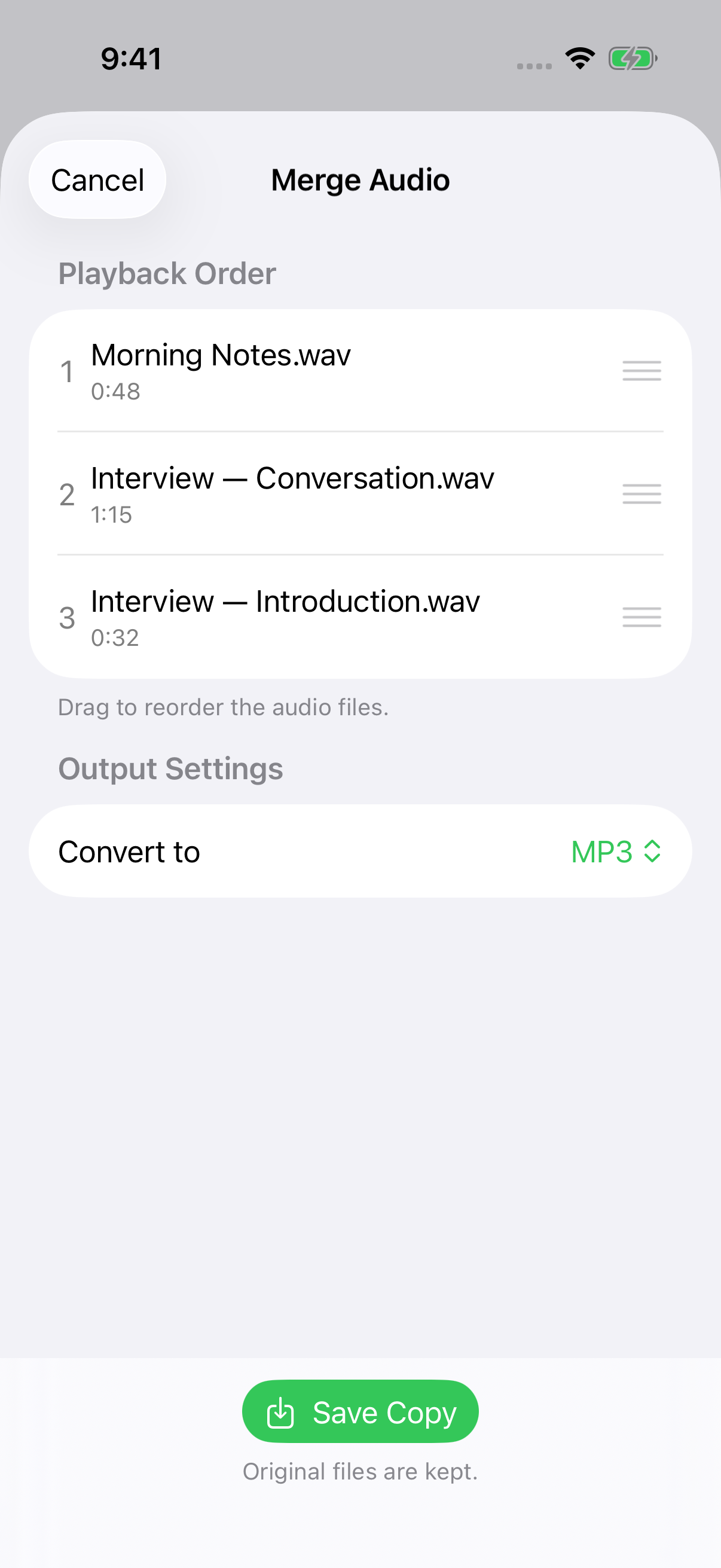
Drag recordings into playback order before saving the merged file.
The original files stay in your library. That lets you keep the separate takes while creating a version that is easier to listen to or share. Audio merging requires Pro.
Compress audio for easier sharing
A large recording can be inconvenient to send. The compression tool creates a smaller MP3 copy, with presets for quality, a balanced result, or a smaller file. Custom controls let you choose a bitrate or set a target file size.
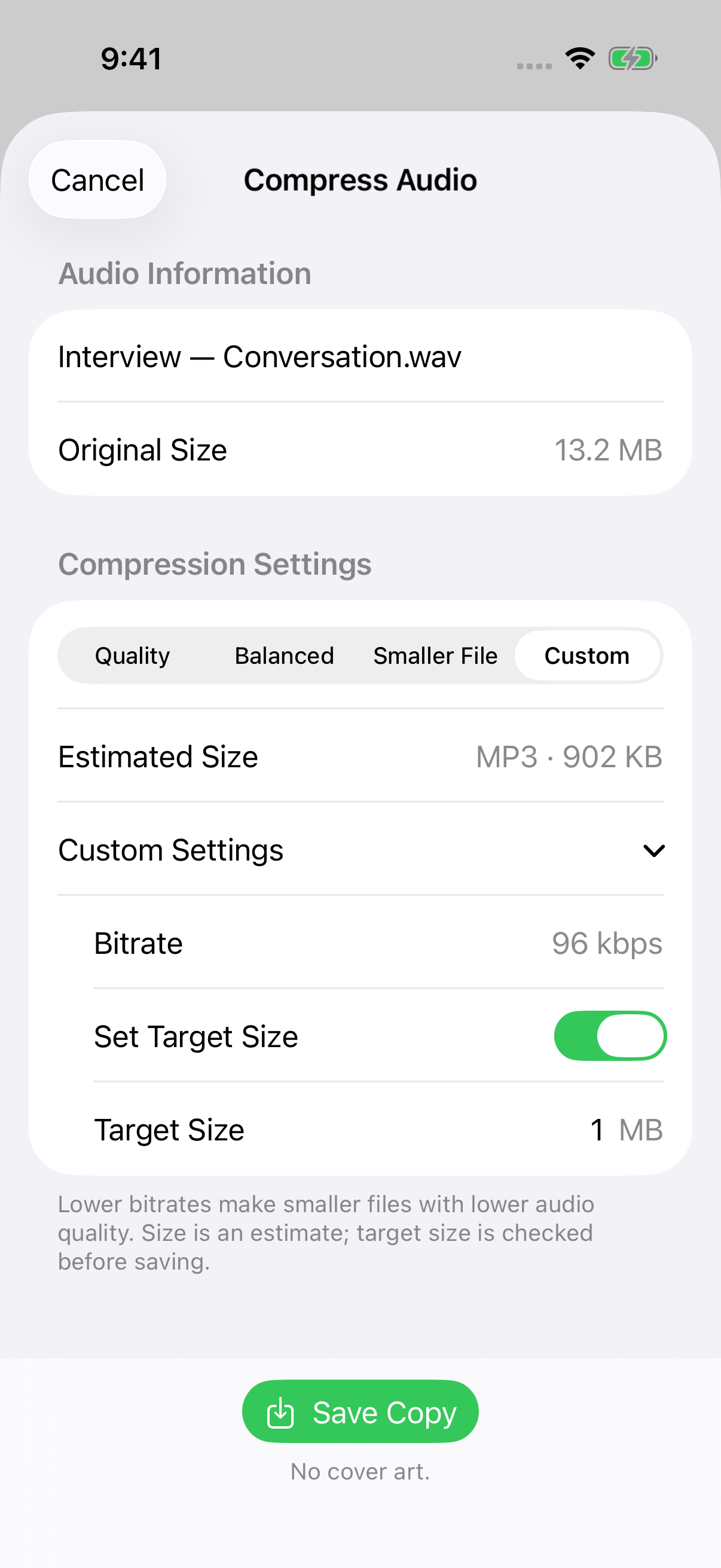
Check the estimated size and adjust compression settings before saving.
For a spoken recording, a smaller file may be more useful than keeping a high bitrate. For music, you may prefer a higher quality setting. Lower bitrates reduce file size at the cost of audio quality; compression is a choice about that tradeoff. The displayed size is an estimate, and a target size is checked before saving. Audio compression requires Pro.
Adjust volume and export a different speed
The volume tool lets you turn a recording up or down and compare the original with the effect before saving. A peak limiter helps protect louder sections from clipping when you increase the volume. This is useful when a voice recording needs a level adjustment before sharing.
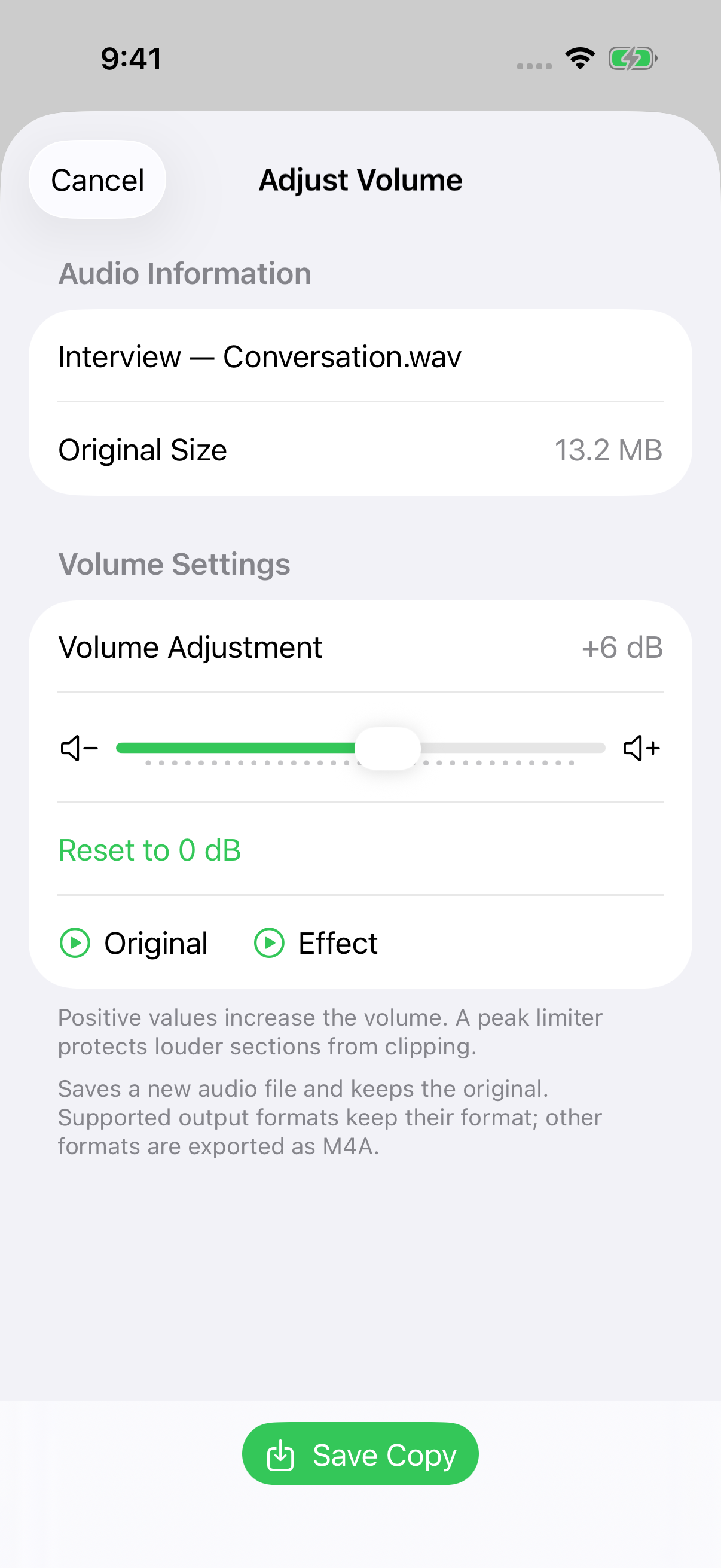
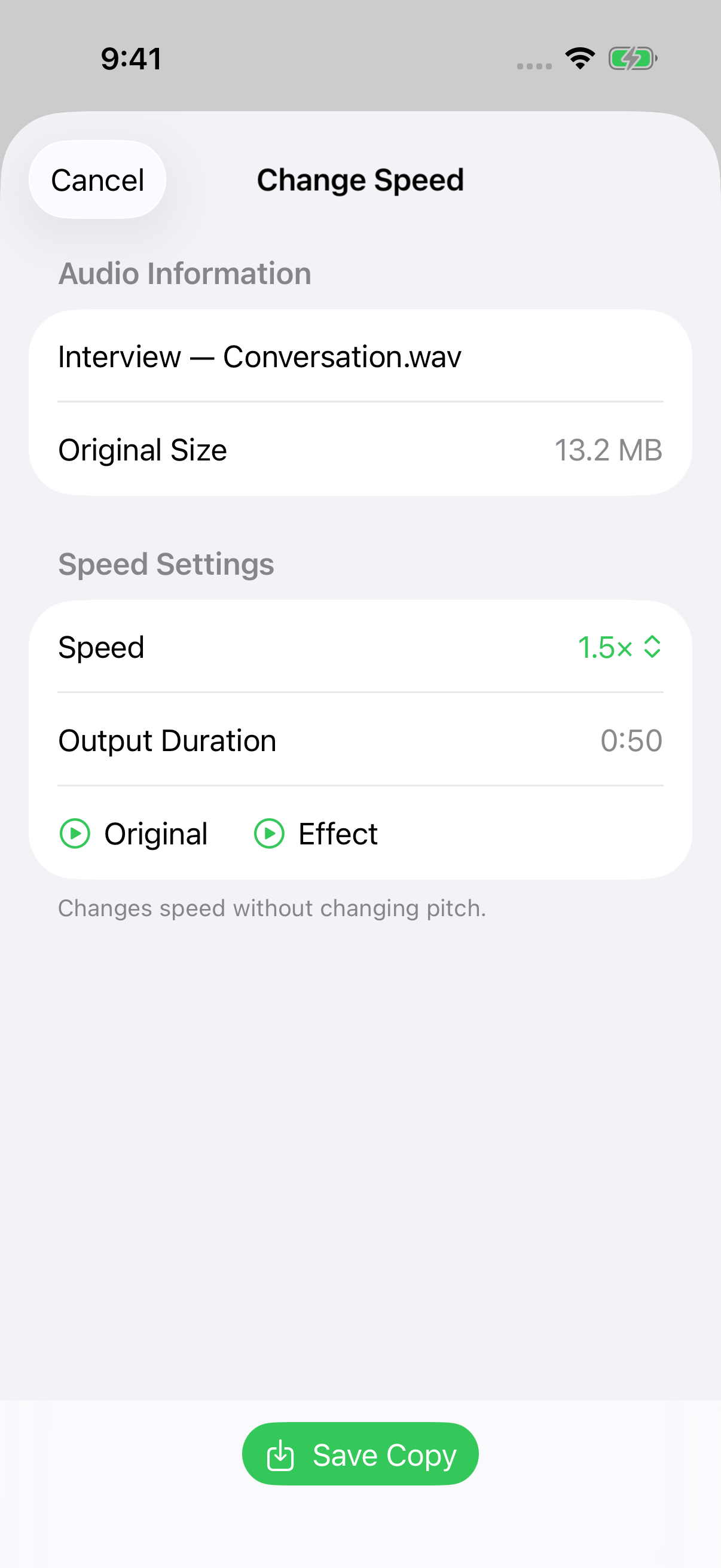
Preview a volume adjustment or speed change before exporting a new copy.
Speed editing saves the changed speed into a new audio file while keeping the original pitch. You could export a faster lecture recording for review or slow down spoken material for closer listening. The output duration updates with the selected speed, and you can preview the result first. Volume adjustment and speed export require Pro.
Add a smoother beginning and ending
Fade-in and fade-out processing gives a clip a gradual start and finish. Choose a preset duration or a custom duration, then preview the beginning and ending before saving.
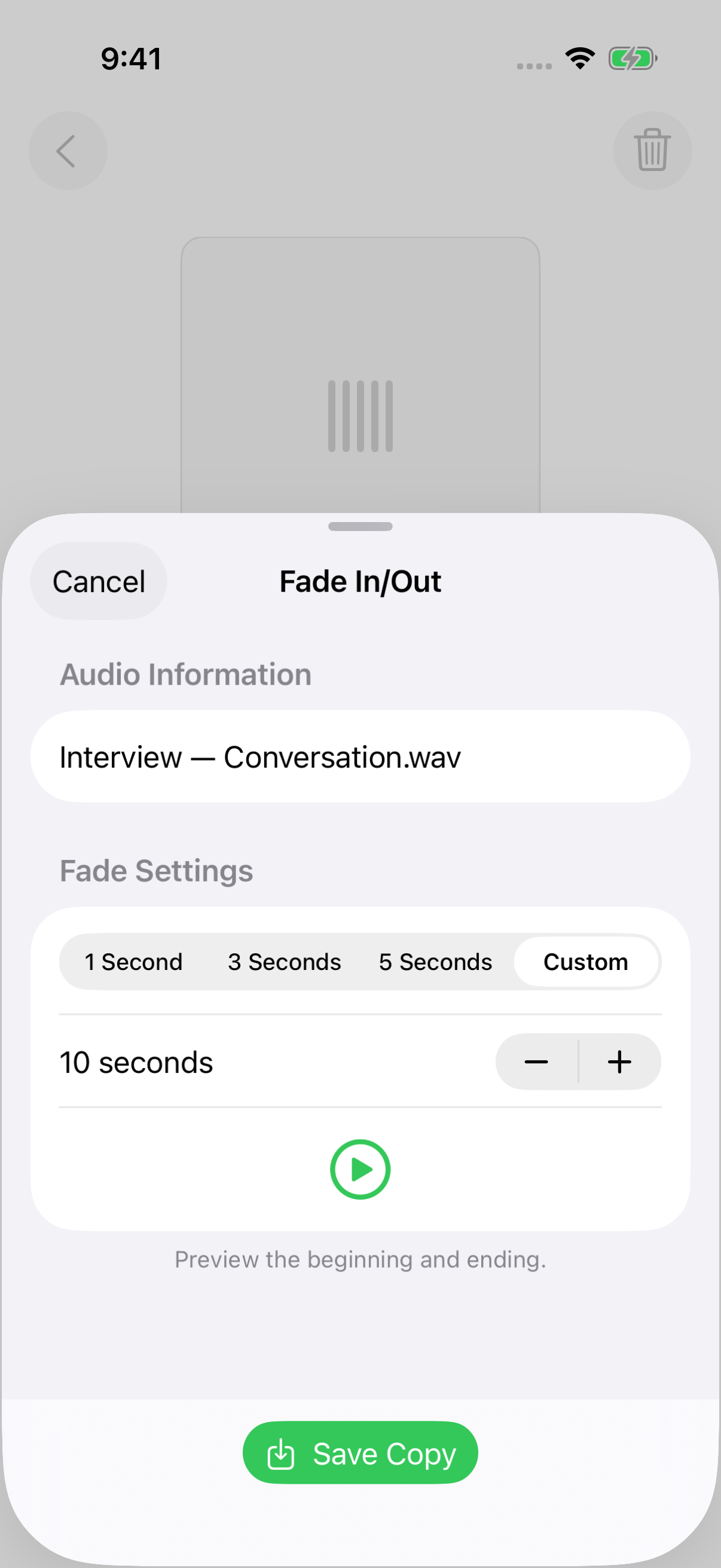
Choose a fade duration and listen to the edges of the clip.
Fades work alongside the existing waveform trimming tools: trim to the section you want, then add a gradual opening and ending if the clip needs them. Fade processing requires Pro.
Apply changes to multiple files
When several recordings need the same treatment, batch editing saves repeating the settings for each one. Select multiple audio files to even out their volume, apply fades, adjust volume, change speed, or compress them with Pro.
This is useful for preparing a group of lecture recordings or voice notes. Volume leveling helps bring files toward a consistent listening level; manual volume adjustment gives you control over how much to raise or lower them.
Keep your originals and process audio on your device
These editing tools save new copies and preserve your original recordings. You can listen to the result, share the edited version, and return to the source when you want a different edit.
Pro is a one-time purchase that unlocks merging, compression, volume adjustment, speed export, volume leveling, silence removal, fades, batch export and sharing, and unlimited trims. Free use includes three trims per day and individual file export and sharing.
Explore 2MP3 on the App Store for an audio workflow that stays on your device, from extracting a video track to preparing the file you want to keep. The HP60 product team is responsible for this article. The publication date above identifies this content version; product behavior may change after release, so consult the linked product and support pages for current limits.Content responsibility